Connect TA652FC-W to ThingsBoard
Tip
This section applies to both
TA652FC-WandTA652FH-W.Unless otherwise specified, all specifications applicable to TA652FC-W are also applicable to TA652FH-W.
This section describes the process of connecting TA652FC-W to ThingsBoard via Wi-Fi. This process applies to all models of thermostats in this series.
Prerequisites. Clear Wi-Fi Configuration
Tip
If your TA652FC-W is used for the first time, or your TA652FC-W has never been connected to any Wi-Fi router, you can skip this step.
If your TA652FC-W has been connected to a Wi-Fi router before, when you need to connect to a new Wi-Fi router, you need to clear the Wi-Fi configuration of the TA652FC-W first.
Press and hold
 and
and  simultaneously for 10 seconds on the TA652FC-W.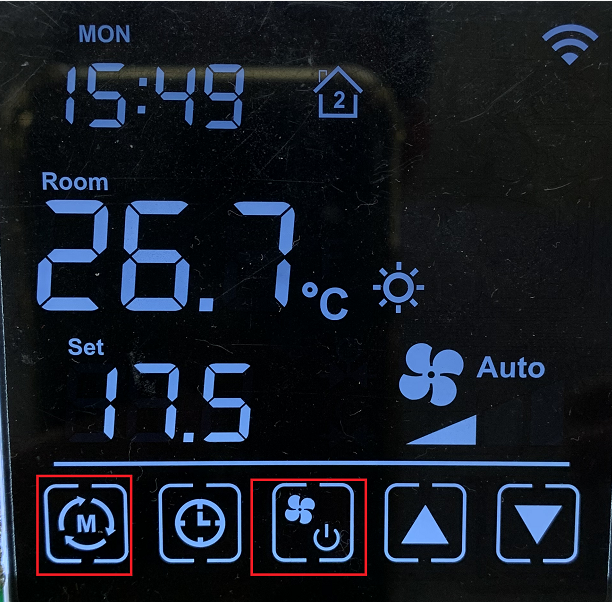
Enter Wi-Fi parameter clearing mode P19.
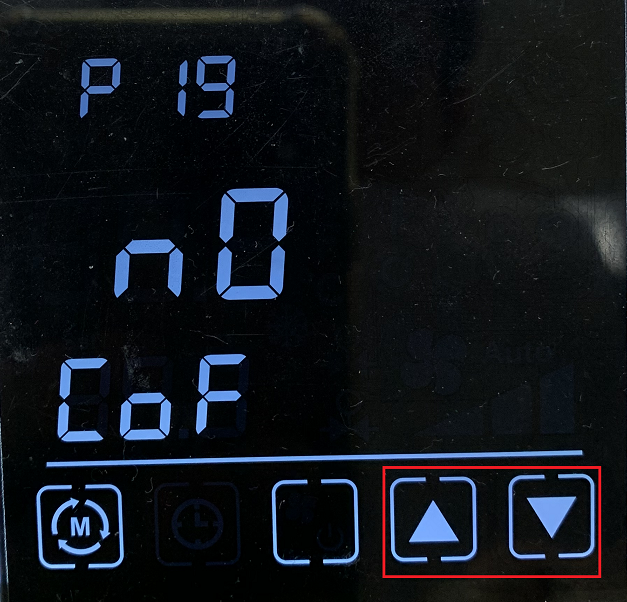
Press
 or
or  to select YES.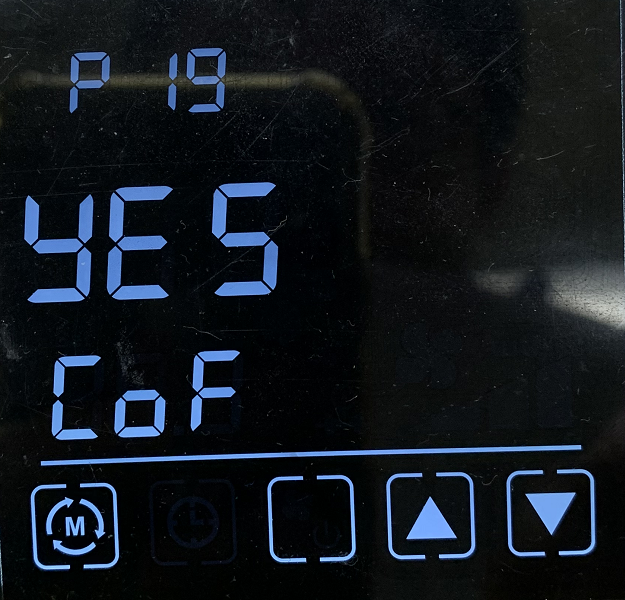
Press
to return to the normal interface, and the Wi-Fi parameters are cleared.
Step 1. Get Access-Token
Get a access-token of TA652FC-W from ThingsBoard. See Step 5.1 Copy credentials of new device.
Step 2. Power On
When you first power up, TA652FC-W will enter Wi-Fi AP mode without any Wi-Fi parameters. At this point, you can configure the parameters through the web page.
Tip
TA652FC-W has a different Wi-Fi Hotspot name every time it’s powered on.
Step 3. Configure
Connect to TA652FC-W’s Wi-Fi hotspot on your computer or smart phone. It’s like
Avan-Stats-CEBD8.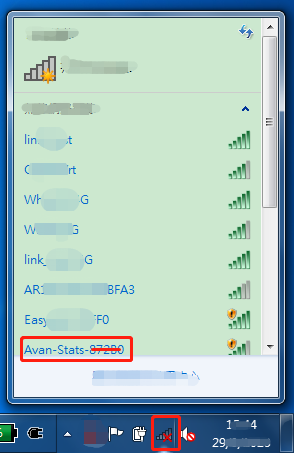
Open your browser, type
http://192.168.4.1.Input your configuration, then
Apply.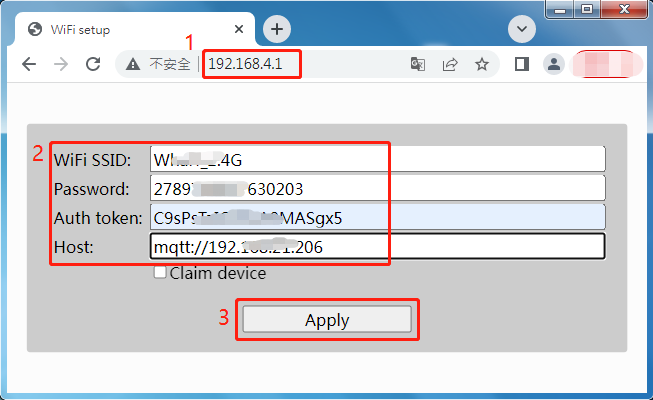
Field
Description
Wi-Fi SSID
SSID of your Wi-Fi router
Password
password of your Wi-Fi router
Auth Token
Access Token of your TA652FC-W. See Step 1. Get Access-Token
Host
This ThingsBoard Server’s MQTT URL.It must begin with “mqtt://”, such as “mqtt://192.168.21.206”Please replace 192.168.21.206 with your ThingsBoard IP Address.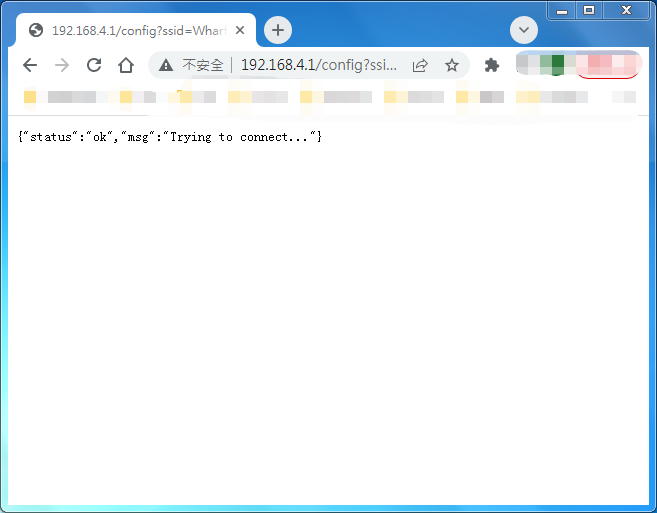
If the configuration is successful, the following screen may be displayed.
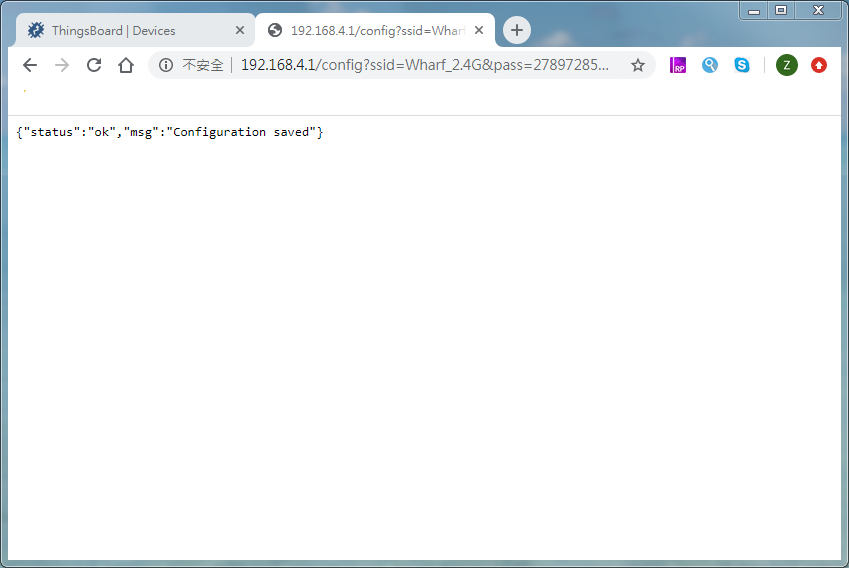
Step 4. Check
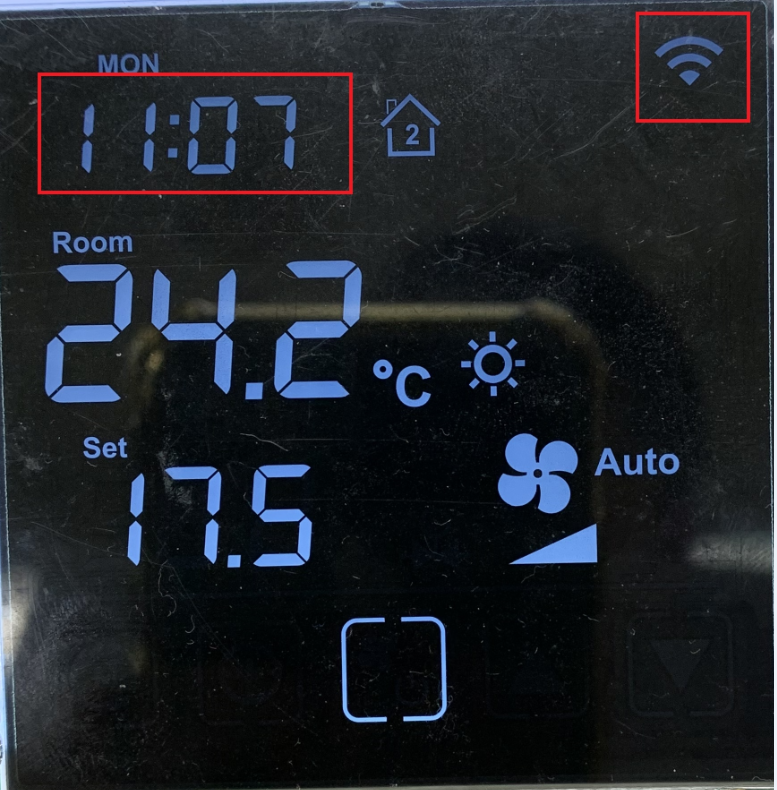
Check if TA652FC-W is connected to ThingsBoard correctly. If connected correctly, there will be a Wi-Fi icon in the upper right corner of the Thermostat, and the time will no longer be 12:00. If you do not set the tone zone relationship on ThingsBoard correctly, the time displayed by TA652FC-W may be slightly off.
Troubleshooting
Thermostat TA652FC-W can’t connect to Wi-Fi:
If the Thermostat has never been connected to any Wi-Fi router since leaving the factory, it will enter Soft-AP mode. You can search for Wi-Fi SSID similar to “Avan-Stats-CEBD8” through your mobile phone or computer.
Make sure the Wi-Fi router supports and turns on the 2.4G signal. Currently, some dual-band (2.4G & 5G) Wi-Fi routers can turn off the 2.4G signal. Please turn it on in your router settings.
Make sure your Wi-Fi SSID and Password are correct, and they are related parameters of 2.4G Wi-Fi signal.
Confirm that the Token is normal.
Confirm that the Token corresponds to the actual model (the Token of TA652FH-W-TB can only be connected to the Thermostat of TA652FH-W-TB. The same is true for TA652FC-W-TB).
Confirm that the Token did not fail during the copying process.
Confirm that the Token has no special characters. Token can only contain A-Z, a~z, 0~9. Illegal characters such as “-” will appear in the case of product end. You can edit and get a new Token in Step 1. Get Access-Token.
Confirm that the Host parameter is correct. Host must start with “mqtt://”, followed by IP address or domain name of ThingsBoard.
If the above parameters are confirmed to be correct, you can start from Step 2. Power On and try several times.